Compatibility Guide · Apple Silicon
Can Your Mac Run This Steam Game? 5 Checks
To check if a Steam game is Mac compatible, open its Steam store page and look for the macOS icon beside the purchase options. Then read the Mac system requirements and look for a recent test on a similar Mac. The icon alone does not confirm that an older Mac version still works on Apple Silicon.
Windows-only game? Search the IgniteX compatibility catalog for a recorded Mac test or a clearly labeled estimate. Check the graphics requirements, launcher, anti-cheat and tested game mode before buying. An estimate is not gameplay proof.
Already have a game in mind?
Search your game in the compatibility catalog, or compare these recorded examples:
- Red Dead Redemption 2: recorded Story Mode gameplay
- Elden Ring: recorded offline gameplay
- Counter-Strike 2: recorded M4 Max online matchmaking
Each result applies to its recorded setup and mode. A catalog estimate alone is not a gameplay test.
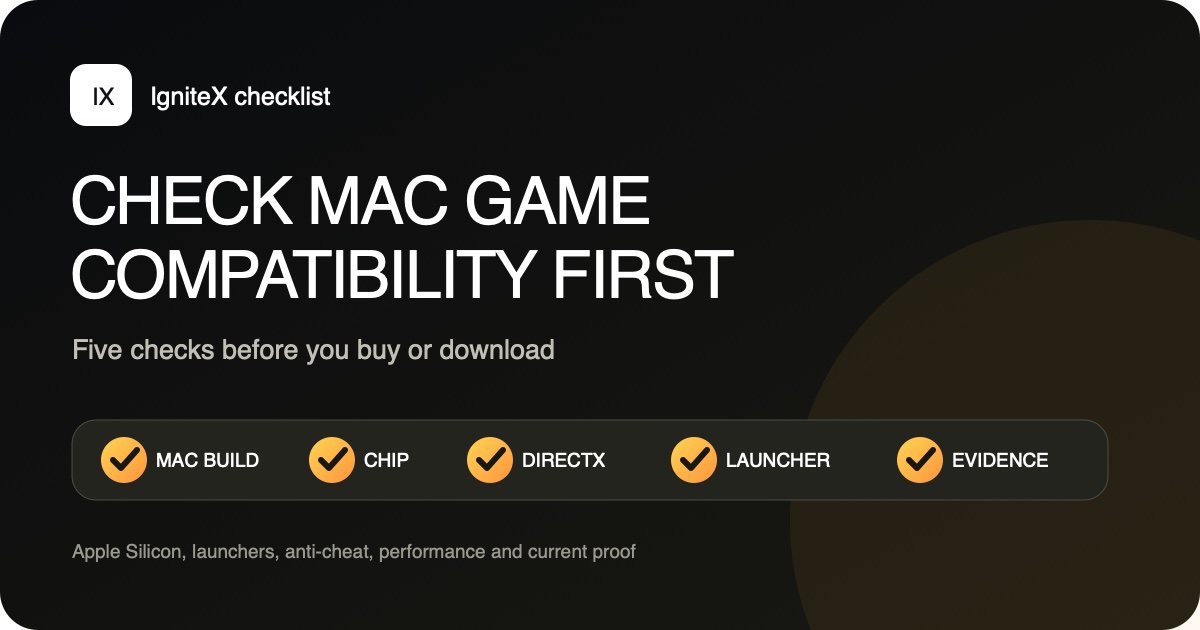
The two-minute compatibility check
- Check the Steam page for a macOS icon and current Mac system requirements.
- For a Mac build, confirm 64-bit support, the required macOS version and whether it is Apple silicon, Universal or Intel.
- For a Windows-only build, identify DirectX, any required launcher or DRM, and anti-cheat.
- Find a recent result on a similar M-series Mac. Look for sustained gameplay, not just a successful launch.
- Treat predictions and reports from another operating system as clues, not proof.
Step 1: Read the Steam platform and system requirements
Start on the game’s Steam store page. The platform icons beside the purchase area tell you whether the publisher currently offers Windows, macOS or Linux files. Open the System Requirements section and select the Mac tab when one is present. Steam Support also provides a Mac-compatible store filter and recommends checking the specific macOS version required by the game.
Record the required macOS version, processor, memory, graphics hardware and storage. Compare those with Apple menu › About This Mac. Meeting the listed minimum is necessary for a supported Mac release, but it is not proof that an old port still runs on a current M-series Mac.
Why the Mac icon is only the first check
Some old Mac builds are 32-bit. Modern macOS cannot launch them even though they remain in a Steam library and may still show Mac history. Steam documents that macOS Catalina and later run only 64-bit Mac applications. Also check the store page’s recent reviews, update notes and developer support page for a current compatibility statement.
Step 2: Identify how the Mac build runs on Apple Silicon
A current Mac game can be built for Apple silicon, shipped as a Universal app containing both Apple silicon and Intel code, or supplied only as an Intel app. An Intel Mac app can currently run through Rosetta when its other components remain compatible.
After installing a native Mac game, select its application in Finder, press Command-I, and read Kind. Apple’s guide explains the three labels: Application (Apple silicon), Application (Universal), and Application (Intel). The same guide says Rosetta remains broadly available through macOS 27; starting with macOS 28, its functionality will be limited to certain older, unmaintained games that use Intel frameworks. That makes a maintained Universal or Apple silicon build the safer long-term choice.
Architecture is not the only variable. An Intel game may still fail because of a 32-bit launcher, obsolete audio or video middleware, an abandoned account login, or a macOS version check. Look for a report from the current game build and a recent macOS release.
Step 3: For Windows-only games, check the whole dependency chain
A Windows icon without a Mac icon means Steam will not install a native Mac build. Selected Windows games can still run through a compatibility layer. Wine translates Windows API calls rather than installing or emulating a complete Windows operating system. On Apple Silicon, CPU and graphics translation add more moving parts, so a broad “works with Wine” claim is not enough. Use the Wine setup guide for Steam on Mac when you are ready to test a supported title.
| Check | Why it matters | What to look for |
|---|---|---|
| Graphics API | DirectX calls need a compatible graphics route to Apple’s GPU | DirectX 9, 10, 11 or 12; Vulkan or OpenGL; a tested renderer |
| CPU and game build | Most Windows games are x86-64 and need translation on Apple Silicon | A current 64-bit build and a report from an M-series Mac |
| Launcher and DRM | A game may render correctly but fail before its executable starts | Required publisher account, secondary launcher, activation and sign-in behavior |
| Media and middleware | Cutscenes, audio, controllers or web login panels can use unsupported components | Working videos, sound, input and login, not just the main menu |
| Anti-cheat | Windows drivers and platform attestation can block online play | Whether the exact game mode is officially supported; never a bypass |
| Performance | Launching does not mean the game is enjoyable | Resolution, settings, frame rate, frame pacing, memory and test duration |
DirectX 11 and no anti-cheat is a favorable profile, not a guarantee. DirectX 12 is not an automatic failure either, but feature requirements and graphics routes vary widely. Treat the exact game, update and rendering path as the unit of compatibility.
Step 4: Check anti-cheat and online modes separately
Do not infer online compatibility from offline gameplay. A campaign, tutorial or local mode can work while matchmaking fails when anti-cheat initializes. Conversely, the presence of an anti-cheat name on a store page does not tell you which modes load it or whether the publisher supports a non-Windows client.
Use the publisher’s support pages and current release notes as the authority. Then look for a dated test of the exact mode you want to play. A useful test records whether matchmaking completed and whether a full session ran, not merely that the title screen appeared. If a game requires an unsupported kernel-level or platform-specific anti-cheat, use a native version, an officially supported streaming service or a supported PC. Do not disable or bypass it.
Step 5: Grade the evidence, not just the verdict
Compatibility databases are useful for narrowing hundreds of games, but their labels can hide very different evidence. Read the source behind the color or score.
| Evidence | What it proves | Confidence |
|---|---|---|
| Current versioned Apple Silicon test | The recorded build and mode worked on the stated Mac, macOS and configuration | Strongest, but still not universal |
| Recent detailed Mac report | A named setup worked or failed for one user | Useful when reproducible |
| Older Mac or different M-series result | The game has worked in a related environment | Directional |
| Linux/Proton or generic Wine report | May expose launcher or Windows API problems | Clue only for macOS |
| Rule-based catalog estimate | The game’s known traits resemble compatible or incompatible profiles | Prediction, not a test |
A good test note includes the Mac model and chip, unified memory, macOS version, game build, Wine or app version, graphics route, resolution, settings, test duration and tested mode. It also states limitations. “Boots” means the executable opened. “Playable” should mean meaningful gameplay. “Verified” should be reserved for a recorded, version-specific result.
For example, IgniteX’s compatibility catalog labels its 777 entries as rule-based estimates unless explicit test evidence is attached. The MECCHA CHAMELEON test, by contrast, records Apple Silicon hardware, multiplayer gameplay and observed performance. Those are different levels of evidence and should not share the same language.
Compatibility traps that produce false confidence
- “It has a Mac icon.” The build can still be 32-bit, abandoned or incompatible with your macOS release.
- “It works on Intel Mac.” Apple Silicon changes the CPU path, and current macOS may have removed an old dependency.
- “It is Gold on ProtonDB.” Proton targets Linux. macOS has different graphics, drivers and platform integration.
- “The engine is supported.” Two games on the same engine can use different renderers, launchers, codecs and anti-cheat.
- “I reached the menu.” That does not test a level, save system, cutscene, controller, multiplayer session or sustained performance.
- “A three-year-old video proves it.” Game, launcher, macOS and translation-layer updates can all change the result.
A sensible buy-and-test workflow
- Check the platform, requirements and dependency chain before paying.
- Prefer a native Apple silicon or Universal build when one is maintained.
- For Windows-only games, find at least one recent Apple Silicon result and record its setup.
- Install only the components the chosen tool actually requires. IgniteX never bundles, downloads or redistributes Apple Game Porting Toolkit or D3DMetal components; optional Apple components must be obtained by the user directly from Apple under Apple’s terms.
- Test the real mode you care about early: a representative level for single-player or a complete match for online play.
- Check video, audio, saves, input and performance, then preserve the working configuration.
Before choosing software, compare Mac gaming routes by ownership, maintenance, and limitations.
For a new Steam purchase, know the store’s current rules before testing. Valve’s published policy says the standard refund offer for games applies within 14 days of purchase and with less than two hours of playtime, subject to its terms and exceptions; read the official Steam refund policy rather than assuming a test is risk-free.
Frequently asked questions
How do I know if a Steam game is compatible with my Mac?
Check the macOS icon and current Mac requirements first. Then confirm 64-bit and Apple Silicon support, or identify the Windows compatibility path. Finish with recent evidence from comparable hardware and the exact game mode you want.
Does the Apple logo on Steam mean it works on an M-series Mac?
No. It means a Mac build is offered or associated with the title, but it may be old, Intel-only or 32-bit. Confirm the required macOS release and a recent Apple Silicon result.
Can a Windows-only Steam game work on Mac?
Yes, selected games can run through Wine-based tools without a Windows installation. Compatibility depends on the exact game build, graphics API, launcher, middleware, anti-cheat and translation setup.
Is ProtonDB proof that a game works on macOS?
No. ProtonDB is evidence about Linux and Proton. It can offer useful clues, but it does not test macOS graphics paths, Apple Silicon translation or Mac-specific anti-cheat behavior.
What does “verified” compatibility mean?
It should mean an observed result tied to a specific game build, Mac, macOS version and configuration. The tested mode and limitations should be stated. A broad prediction or an old community comment is not a verified test.