Hardware Guide · Unified Memory
How Much RAM Do You Need for Mac Gaming? 8GB to 32GB Explained
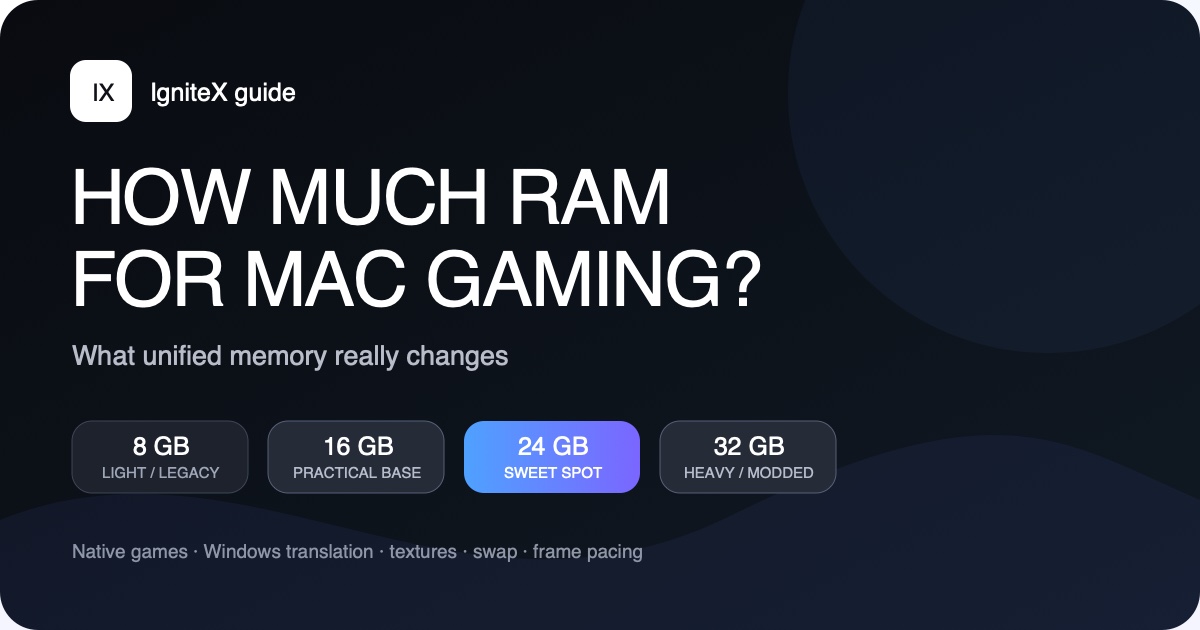
For a new Mac bought with gaming in mind, 16GB of unified memory is the practical minimum, 24GB is the best balance for most people, and 32GB is the safer choice for demanding Windows games, large mods or years of headroom. Eight gigabytes can still run lighter games on a Mac you already own, but it is easy to exhaust because the CPU, GPU, macOS and game all share the same memory pool.
The short recommendation
- 8GB: workable for lighter, older and well-optimized games on an existing Mac; not a new gaming purchase recommendation.
- 16GB: the practical baseline for native games, indies and selected translated Windows titles.
- 24GB: the sweet spot for a new general-purpose gaming Mac, with room for translation overhead and modern textures.
- 32GB: sensible for demanding AAA games, heavy mods, high-resolution texture packs and substantial multitasking.
- 48GB or more: usually bought for professional workloads; rarely necessary for gaming alone.
Why Mac memory is different from PC RAM plus VRAM
Apple Silicon uses unified memory. The CPU and GPU access one shared pool instead of giving the graphics processor a separate block of video memory. Apple’s M5 explanation says the CPU, GPU and Neural Engine all draw from unified memory. This reduces copying between separate pools, but it also means a game’s textures and render targets compete with macOS, Steam, browsers and everything else for the same capacity.
A 16GB Mac therefore does not behave like a PC with 16GB of system RAM plus an 8GB graphics card. Nor is unified memory magically equivalent to a larger amount of ordinary RAM. Efficient sharing helps, but once the active workload no longer fits comfortably, macOS compresses memory or moves inactive pages to SSD swap.
How much unified memory each tier can handle
| Memory | Good fit | Main limitation | Buying view |
|---|---|---|---|
| 8GB | 2D games, indies, older 3D titles, lighter native ports | Little headroom for GPU resources, translation and background apps | Use what you own |
| 16GB | Most lighter native games and many DX9/DX11-era Windows games | Modern textures and demanding translated games can trigger swap | Practical baseline |
| 24GB | Broad mixed library, Windows translation, moderate mods and multitasking | Not a substitute for a faster GPU or supported game | Best balance |
| 32GB | Demanding AAA games, high textures, larger mods and creation work | May not improve games that already fit | Heavy-use choice |
| 48GB+ | Professional 3D, development, local AI and unusually large simulations | Gaming alone rarely uses the investment | Workstation tier |
These are workload recommendations, not compatibility promises. A lightweight game with unsupported anti-cheat can fail on a 128GB Mac, while a well-made indie can run beautifully in 8GB. Check the title first with our Mac compatibility checklist, then size the hardware.
Is 8GB enough for Mac gaming?
Eight gigabytes is enough to play many games; it is not enough to make memory irrelevant. An existing 8GB M1 MacBook Air can be a good machine for 2D titles, indie games, older DirectX releases and efficient native ports. Close large browsers and creative apps, begin with lower texture settings, and avoid the panel’s full Retina resolution in demanding 3D games.
The constraint appears when macOS, the GPU’s working data, Steam and the game need more than the shared pool. Compression can delay the problem, and SSD swap can keep the application alive, but neither turns 8GB into 16GB. Expect more risk of hitching during scene changes, texture streaming and long sessions.
Do not discard a working 8GB Mac
If you already own one, test the games you care about. Memory needs vary enormously. Our recommendation against buying 8GB specifically for gaming is about limited headroom and a fixed configuration, not a claim that every game requires more.
Is 16GB enough for Mac gaming?
For most people, 16GB is the point where an Apple Silicon Mac becomes a practical general gaming machine. It gives native games and the GPU room to work while leaving capacity for ordinary background services. It also handles many Windows games through Wine-based translation, particularly lighter DX9 and DX11 titles, when the rest of the compatibility profile is favorable.
Sixteen gigabytes can still be tight for recent AAA games, high-resolution texture packs, large simulation saves or a translated title running beside a browser full of tabs. If you keep a Mac for years or cannot predict your library, 24GB offers more useful insurance.
Why 24GB is the sweet spot for many buyers
Twenty-four gigabytes gives the shared GPU pool meaningful breathing room without jumping to a workstation configuration. It is particularly useful when the stack includes the Windows Steam client, a Wine prefix, CPU translation and a DirectX-to-Metal route. Those layers do not impose one fixed memory tax, but together they leave less room than a lightweight native game.
It is also a comfortable real-life tier: a game, voice chat, a guide in the browser and normal macOS services can coexist without immediately forcing aggressive compression or swap. That does not guarantee higher average FPS. It reduces the chance that capacity itself causes stutter, reduced texture quality or constant app-closing.
When 32GB or more is worth paying for
Choose 32GB if you expect demanding DirectX 12 games through translation, high-resolution texture packs, large mod lists, asset-heavy simulation or strategy games, or creative and development apps running beside the game. It is also reasonable when you plan to keep the Mac through several generations of larger releases.
Above 32GB, the gaming return usually falls sharply. More capacity is valuable for 3D production, large local AI models and professional video work, but most games will not become faster merely because 48GB or 64GB is available. Buy those tiers for the combined workload, not an imagined FPS multiplier.
Native games versus Windows games through Wine
A maintained native Apple Silicon game has the most direct path. An Intel Mac build adds Rosetta. A Windows game adds a Wine environment and usually graphics translation. Each layer can bring caches, helper processes and duplicated resources, although the exact cost varies by game and tool.
That is why 16GB may feel generous in a native indie and constrained in a launcher-heavy Windows AAA game. Our DirectX 12 on Apple Silicon guide explains the graphics routes; the Wine setup guide covers clean prefixes and controlled testing.
Does more RAM improve FPS?
Only when memory pressure is part of the bottleneck. If a game, macOS and the GPU already fit comfortably in 16GB, moving the same workload to 24GB or 32GB may produce little or no average-frame-rate change. GPU core count, memory bandwidth, chip generation, cooling, resolution and game optimization can matter more.
When capacity is too low, more memory can prevent repeated SSD paging, keep larger textures resident, reduce pauses when changing areas and improve frame consistency. The gain may appear in one-percent lows and fewer hitches rather than the headline FPS counter. Memory also cannot implement a missing graphics feature, fix a launcher or make unsupported kernel anti-cheat work.
How to measure whether your Mac needs more memory
- Close unrelated heavy apps to create a repeatable baseline.
- Open Activity Monitor › Memory and note Memory Pressure and Swap Used.
- Play a representative section for 20 to 30 minutes, including a busy level or scene change.
- Check the graph again. Sustained yellow or red pressure shows that the workload is harder to serve from available memory.
- Watch swap over time. A small nonzero value is not automatically bad; rapidly rising swap paired with hitching is more useful evidence.
- Change one variable, such as closing a browser or lowering texture quality, then repeat the same section.
Apple’s Activity Monitor guide explains that Memory Pressure combines free memory, swap rate, wired memory and cached files. This is more useful than staring at “free RAM,” because macOS intentionally uses otherwise idle memory for caching.
Reduce memory pressure before replacing your Mac
- Lower texture quality first. Textures directly consume the GPU’s share of unified memory.
- Reduce resolution when GPU load is also high. Larger render targets use more memory and graphics time.
- Close browsers, virtual machines and creative apps. Background capacity remains part of the pool.
- Keep SSD space free. Swap needs storage headroom, although SSD space is not a replacement for memory.
- Remove unnecessary high-resolution mods. Test the unmodified game before blaming the compatibility layer.
Memory is only one part of choosing a gaming Mac
Do not upgrade memory while ignoring the chip. Two Macs with 24GB can have different GPU sizes, memory bandwidth and cooling. A fanless MacBook Air favors portability and silence; a MacBook Pro can sustain demanding work with active cooling. Storage can be added externally later; unified memory cannot.
First decide which games are compatible. Then choose enough GPU, cooling and memory for the desired resolution and settings. Our Mac hardware guide compares the broader tradeoffs, while the IgniteX catalog helps narrow a library. Catalog labels are rule-based estimates unless a versioned test receipt is attached.
Frequently asked questions
Is 8GB of RAM enough for gaming on a Mac?
It can be enough for lighter, older and well-optimized games, especially on an M1 Mac you own. It leaves limited headroom for demanding games, high textures, background apps and Windows translation, so we would not choose it for a new gaming-focused purchase.
Is 16GB enough for Mac gaming?
Yes, for many native games, indies and selected translated Windows titles at sensible settings. It is the practical baseline, but recent AAA games, large mods and heavy multitasking can still push the system into compression and swap.
Is 24GB worth it for gaming?
For a new Mac used for gaming and everyday work, 24GB is often the best balance. It gives the shared GPU pool and translation stack more headroom without moving into workstation-level configurations.
Does more unified memory increase FPS?
Not if the game already fits comfortably. More capacity helps when insufficient memory causes compression, swap, texture compromises or stutter. GPU performance, bandwidth, cooling and game optimization still determine much of the frame rate.
How do I know if memory is the problem?
Watch Memory Pressure and Swap Used in Activity Monitor during a repeatable 20- to 30-minute test. Sustained yellow or red pressure, rising swap and worsening frame pacing are stronger evidence than a single “memory used” number.